Quickstart
This page uses the default setup of Pluto: the blog template with the Git CMS. Your posts are Markdown files in the project, and each save is a Git commit. You need no account, no database, and no settings.
You need Node.js 22 or newer.
Create the project
Run this command in a terminal:
npm create pluto@latest
pnpm create pluto@latest
yarn create pluto
bun create pluto@latest
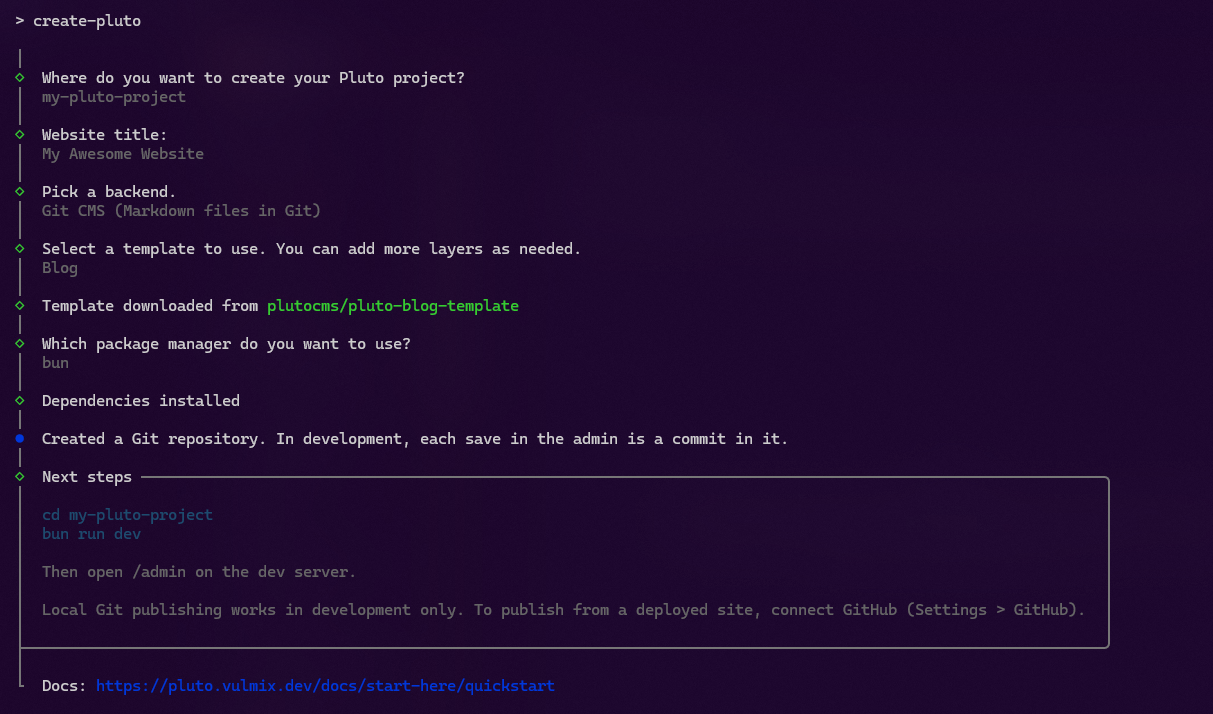
The CLI asks some questions. Press Enter at each question to keep the default. The defaults are the Git CMS and the blog template. The CLI then downloads the template and installs the dependencies.
Start the dev server
Go into the project folder and start the dev server:
cd my-pluto-project
npm run dev
cd my-pluto-project
pnpm run dev
cd my-pluto-project
yarn dev
cd my-pluto-project
bun run dev
Open http://localhost:3000. The blog shows one sample post, Hello, world.
Open the admin
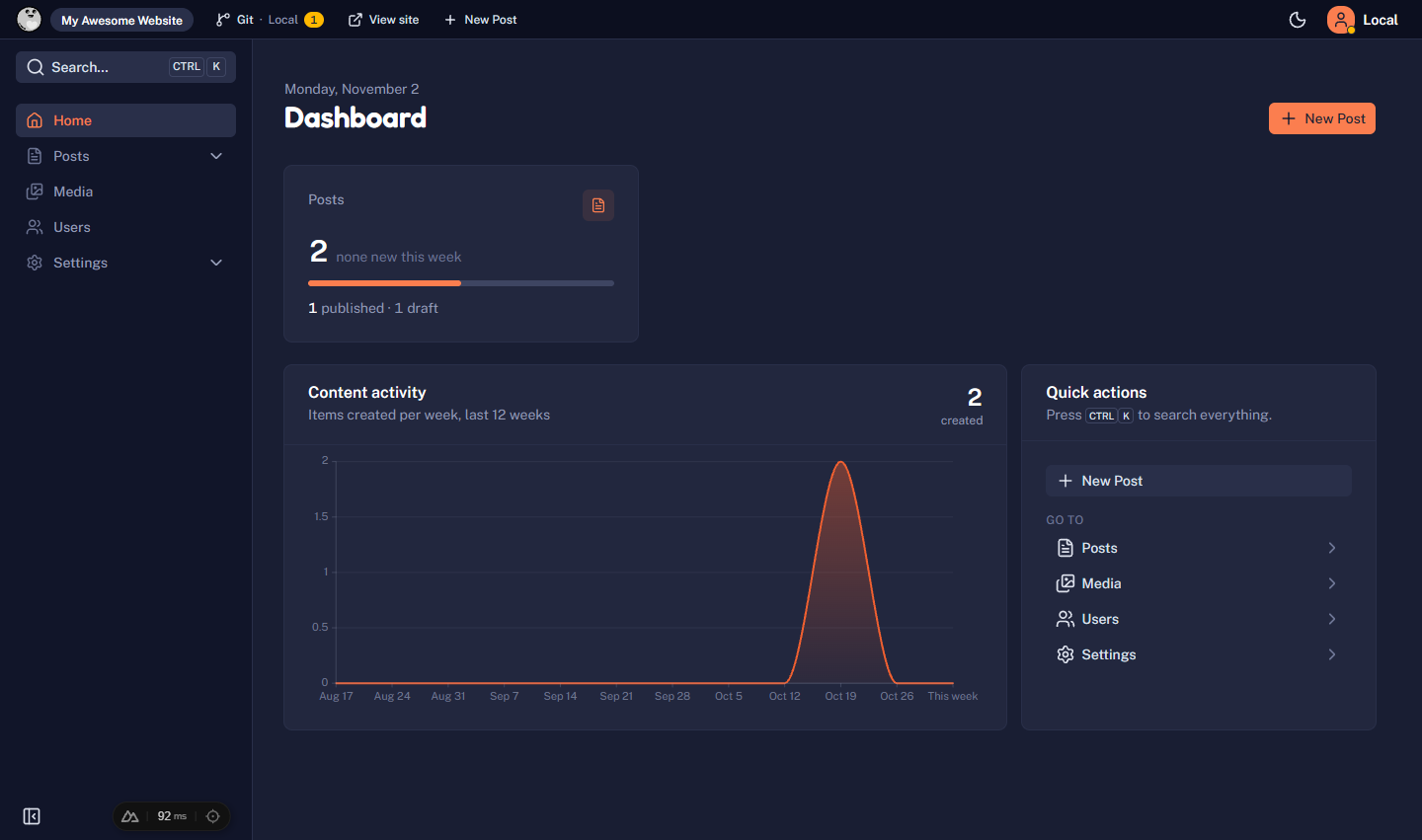
Open http://localhost:3000/admin. On your machine, you do not sign in: the dev server signs you in as a Local user. The dashboard shows your posts.
Write a post
Select New Post. Type a title, and write the text in the editor. Then select Publish.
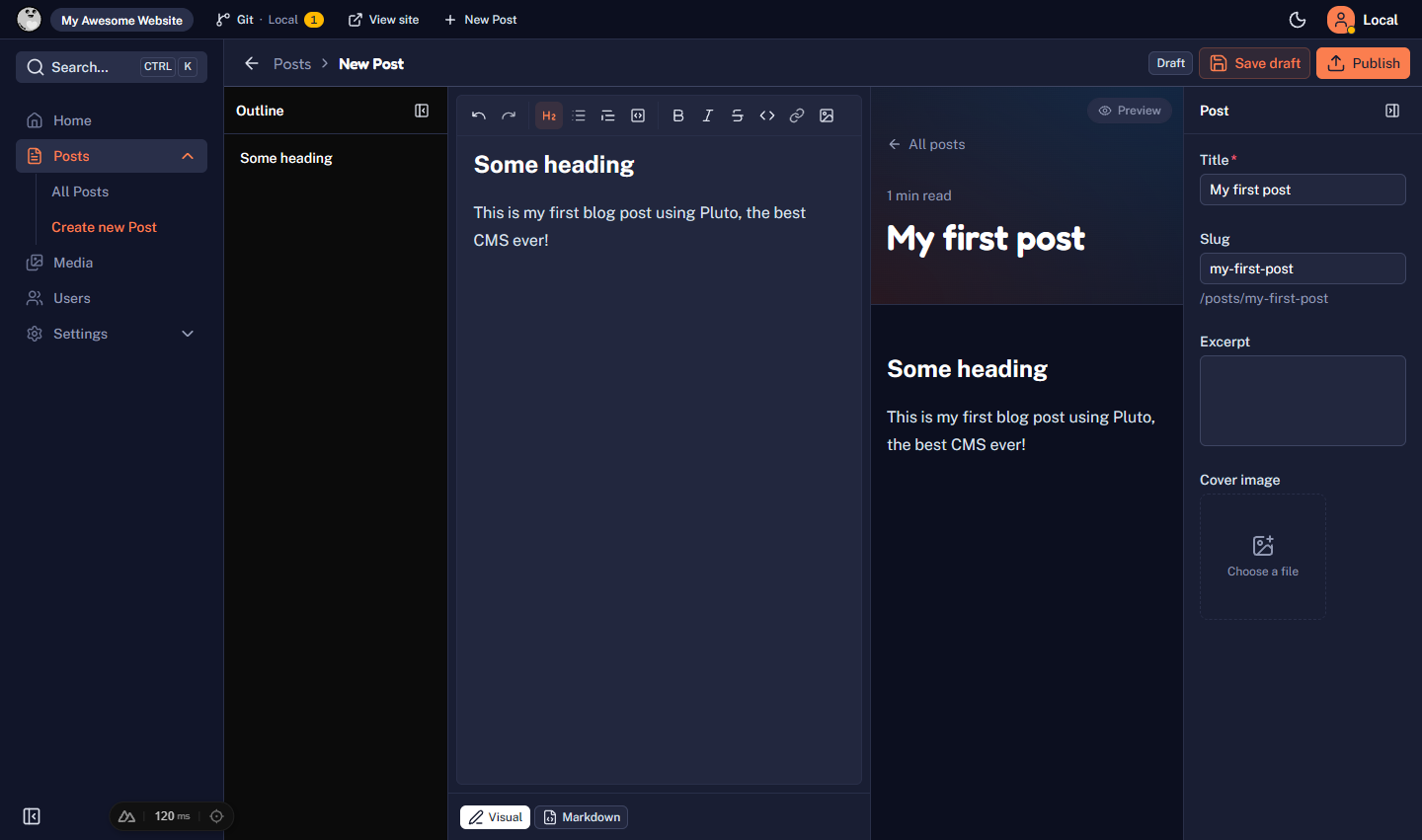
Pluto writes the post to content/posts/<slug>.md and makes a Git commit in your project. Select Save draft in place of Publish to keep a post off the site.
See it on the site
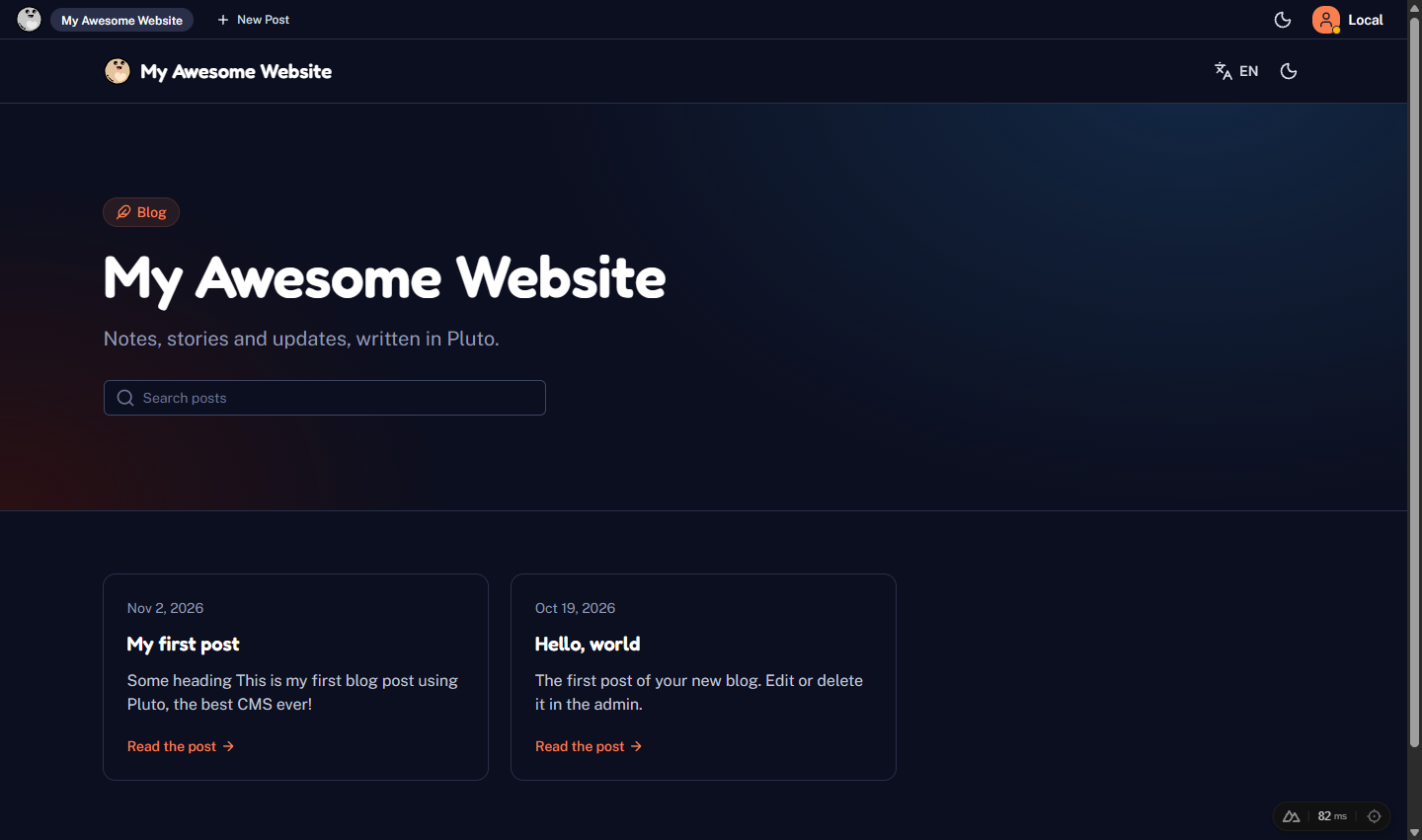
Select View site in the admin bar. Your post is on the home page. While you are signed in, the admin bar shows on the site too, with Edit Post on a post page.
What you have now
- A Nuxt app with the blog pages in
app/pages/. Change them as you like. See Project structure. - The admin at
/admin, with posts, media, and settings. - The posts in
content/posts/, in your Git history. - Tags, categories and authors, each with its pages. See Tags and categories and Authors.
- The SEO add-on, if you said yes to Add SEO?: SEO fields,
sitemap.xml,robots.txtandfeed.xml. - A content component,
Callout, inapp/components/content/. Add it to a post with the puzzle icon of the editor. See Components in posts.
The local sign-in and the local commits work in development only. To edit the posts on a live site, deploy it and connect GitHub. Pluto does the setup for you.